
Effective June 1, 2026, FedEx changed its API credential authorization process. Even if you obtained FedEx API credentials using the previous process, you will need to complete the new authorization process to continue to use the FedEx API to connect to your FedEx account. The instructions below are for the new FedEx API authorization process.
To use these instructions, you must be logged in to Shopify as the store’s administrator or with a login that has administrative privileges. Your Shopify plan must have the 3rd Party Calculated Shipping Rates feature enabled. The feature is standard on the Advanced and Plus Shopify subscription packages. It can be added to some other Shopify subscriptions by contacting Shopify customer service. (Learn more)
Connecting your FedEx account is accomplished using the following steps:
- Select the API endpoint.
- Accept FedEx’s End User License Agreement (EULA).
- Enter the FedEx account information.
- Complete the Multi-factor Authentication (MFA) process.
- Test the API connection.
1. Select the API Endpoint. |
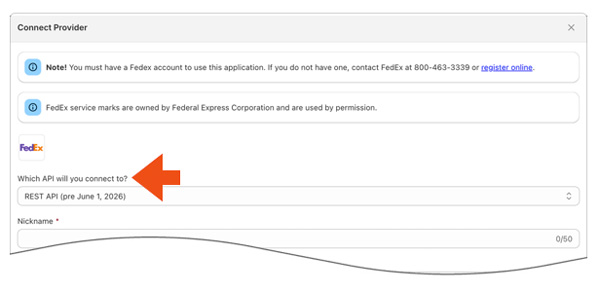
On the Connection Settings page, for the Which API will you connect to? setting, select REST MFA API (eff. June 1, 2026). After June 1, 2026, this is the only option supported by FedEx.
2. Accept FedEx’s End User License Agreement (EULA). |
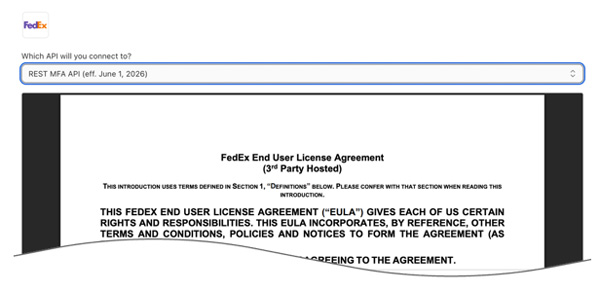
Read and accept FedEx’s End User License Agreement (EULA). To advance to the next step, you must scroll to the bottom of the agreement, check the ‘I accept the terms…’ box at the bottom, and afterward click the Next button to advance to the next step.
3. Enter the FedEx account information. |
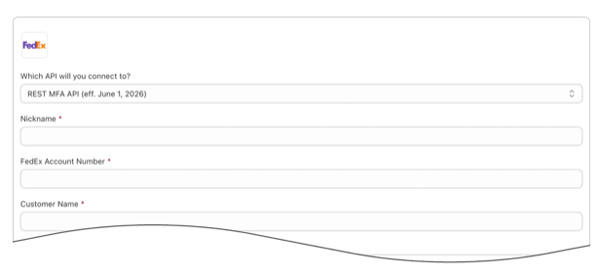
Follow the instructions below to provide your account registration information.
| Which API will you connect to? | The REST MFA API (eff. June 1, 2026) should be selected already. After June 1, 2026, this is the only option supported by FedEx. |
| Nickname | Enter a nickname to use for the connection. It is for your use only and will not be visible to visitors to your store. |
| Account Name | Enter the account name as it appears on your FedEx invoices. |
| Account Number | Enter the FedEx account number. |
| Street Address | Enter the account’s street address exactly as it appears in FedEx’s system, including capitalization and abbreviations. If the street address doesn’t match FedEx’s records exactly, the API credentialing process will fail. |
| City | Enter the account’s city name exactly as it appears in FedEx’s system, including capitalization and abbreviations. If the city name doesn’t match FedEx’s records exactly, the API credentialing process will fail. |
| State/Province | Using uppercase letters, enter the two character abbreviation for the address’s state or province. For example, enter “GA” for Georgia, or “ON” for Ontario. |
| Postal Code | Enter the postal code for the address. Enter the five digit postal code for U.S. addresses. Canadian address postal codes should be entered without the space between the third and fourth positions. |
| Country | Select the country from the drop down list. |
Click the Next button to advance to the next step.
4. Complete the Multi-factor Authentication (MFA) process. |
Choose how you’d like to perform the multi-factor authentication process. There are two methods to choose from:
- Secure code validation – FedEx will provide a PIN for validation by SMS, email, or phone call according to your selected preference. Proceed to step 4a if you prefer this method.
- Invoice validation – FedEx will validate your account based on information obtained from a recent invoice. Proceed to step 4b if you prefer this method.
4a. Secure code validation. |
Choose one of the following for the delivery method for the secure code PIN:
- SMS – FedEx will text a PIN to the phone number registered for the account.
- Email – FedEx will email a PIN to the email address registered for the account.
- Phone call – FedEx will provide a PIN by calling the phone number registered for the account.
4b. Invoice validation. |
Retrieve a copy of a recent invoice. Enter the following information from the invoice:
- Invoice number
- Invoice date
- Invoice amount
- Currency
Afterward, click the Validate button at the bottom of the page.
5. Test the API Connection. |
Reconnect a FedEx Account. |
On occasion, it may be necessary to re-establish the connection to the FedEx API. This may happen due to a change made to the account information in FedEx’s system, such as the physical address, or another reason that causes the Test Connection operation to fail. The Test Connection operation is executed by clicking the Test Connection button on the Connection Settings page. To reconnect your FedEx account, click the Reconnect button. You’ll be redirected to the page that collects your account information. Make any corrections necessary. Click Next to advance to the multi-factor authentication (MFA) step.
Complete the MFA step. Refer to the section previously provided about how to complete the MFA process for instructions.
After completing the MFA process, click the Test Connection button to confirm that the account has been successfully reconnected to the FedEx API.