
Connect the application to the FedEx Freight API.
Click on the name of the integration in the app’s navigation menu to access the shipping provider settings. The Connection Settings page is used to establish the app’s connection to FedEx Freight’s web services. Enter the information prompted for, then click Save Settings. After the settings have been saved, click the Test Connection button. You’ll see a success message if the app was able to establish a connection with the carrier’s servers. If the test failed, something about your connection settings information is incorrect. Make the necessary corrections and try again.
After you have established a successful connection, return to the User’s Guide for the app.
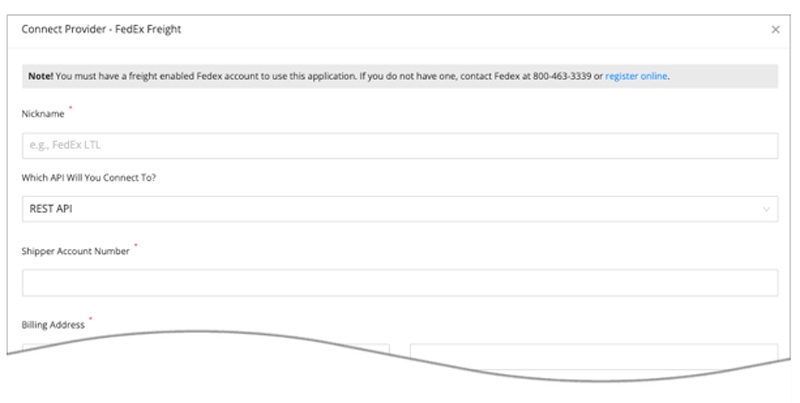
| Which API Will You Connect To? | Select REST API from the dropdown. This is the only connection currently supported by FedEx Freight. |
| Nickname | Enter a nickname for the connection. It will be used to identify the connection within the app. |
| Account Type | LTL Freight Choose this option if you are connecting an account for standard LTL freight. Freight Direct
Choose this option if you are connecting an account for Freight Direct. Related documents:
|
| FedEx Freight Account Number | Enter the FedEx Freight account number. This account number is the one associated with your physical location. |
| Third-party FedEx Freight Account Number | Enter your Third-party FedEx Freight account number. This account number is required when the neither the ship-from or ship-to address match the physical address for your account. |
| Account Name | Enter name registered for the FedEx Freight account. |
| Address | Enter the street address for the account. This must match what FedEx Freight has in its system. |
| City | Enter the city for the account. This must match what FedEx Freight has in its system. |
| State/Province | Enter the standard two character abbreviation for the State or Province. This must match what FedEx Freight has in its system. |
| ZIP/Postal Code | Enter the postal code for the account. Use the five digit ZIP code for U.S. addresses. This must match what FedEx Freight has in its system. |
| Country | Enter the standard two character abbreviation for the country. (CA = Canada / US = United States) This must match what FedEx Freight has in its system. |
Once you enter the connection settings, click the Save Settings button. Afterward, click the Test Connection button. You’ll receive an alert informing you if the connection to the carrier’s API was successful or not. If not, correct the connection settings as needed until the connection is successful. Use the radio buttons for Test Shipper Account Number and Test Third Party Account Number to specify which account number you are testing. If you’re having difficulty getting a successful connection, look over the document about the carrier’s freight account numbers in our Knowledge Base.