
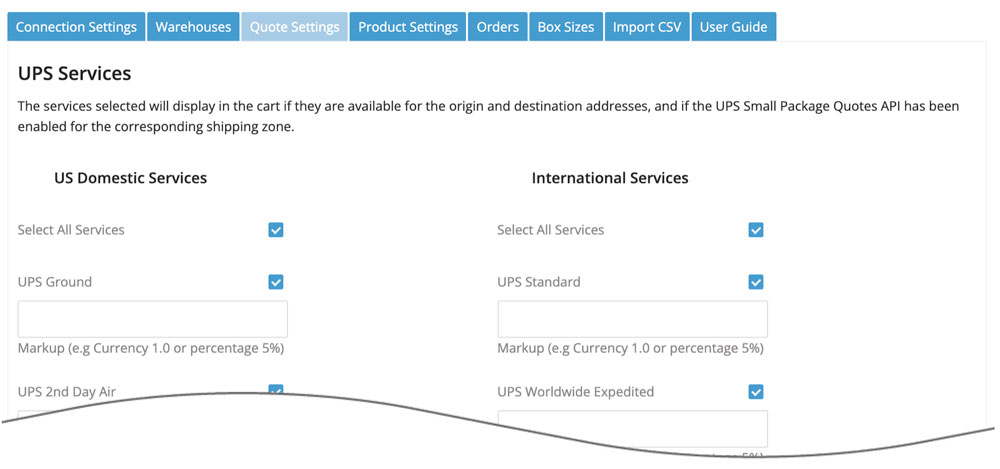
| UPS Services | Enable services Place checkmarks next to the services you want to be displayed in your shopping cart at checkout. Selected services will be displayed only if the destination is included in a corresponding shipping zone and the service is offered to that zone. Check the carrier service guide for a description of its services. Service name
Use the input field to customize the text string used to identify the service during checkout. Leave this field blank to display the name used by the shipping provider to identify the service. Service level markup
Beneath each service is a markup field. You can enter a dollar amount (e.g. 5.00) or percentage (e.g. 3.5%) in the field if you’d like to mark up the rate returned for that service. You can also enter a negative value if you want to mark down the rate. Later in the Quote Settings there is a general Handling Fee / Markup field that will be applied to all returned rate estimates. The service level markups are applied before the general setting. |
| UPS Contract Services | To have access to UPS contract services, they must be enabled on your UPS account.
Place checkmarks next to the contract services you want to be displayed in your shopping cart at checkout. Service name
Use the input field to customize the text string used to identify the service during checkout. Leave this field blank to display the default service name. Service level markup
Beneath each service is a markup field. You can enter a dollar amount (e.g. 5.00) or percentage (e.g. 3.5%) in the field if you’d like to mark up the rate returned for that service. You can also enter a negative value if you want to mark down the rate. |
| International Quote Settings | Use of this feature requires a connection to the new UPS API.
Quote transportation only
International shipping quotes will not include duties and taxes when this setting is enabled. Quote landed cost (transportation + duties + taxes)
International shipping quotes will include duties and taxes when this setting is enabled. |
| Signature options | Use these settings to control signature requirements for all eligible quotes.
Signature not required
Choose this option if you don’t want a signature requirement added to quotes by the Quote Settings. Signature required
Choose this option to include the applicable carrier fee for a required signature in returned quotes. Adult Signature required
Choose this option to include the applicable carrier fee for an adult signature in returned quotes. Quote Settings are evaluated with any signature requirement assigned in Product Settings. Adult Signature required always takes priority when it is enabled at either level. |
| Delivery Estimate Options | Don’t display delivery estimates Choose this option if you don’t want information about the expected delivery to display with the service options. Display estimated number of days
Choose this option if you want the days in-transit to be displayed with each service option. The number of days will be the number of work days. Display estimated delivery date
Choose this option if you want the expected delivery day and delivery-by-time to be displayed with each service option. The shipment date will be the date of the order unless the settings for Order Cut Off Time or Fulfillment Offset Days are in use. Display Saturday delivery
Enable this checkbox if you have the Display estimated delivery date setting selected and you want Saturdays to be a possible delivery date/time depending on the ship date and a service’s time-in-transit metric. |
| Cut off time & ship date offset | These settings are relevant when Display estimated number of days or Display estimated delivery date is selected.
Order cut off time
Enter the cut off time for your orders. When the plugin requests shipping quotes, it identifies a shipment date. The estimated delivery date is dependent on the ship date. The cut off time allows you to postpone an order’s shipment date by one workday. Orders received before the cut off time are quoted using the order date as the ship date. Orders received after the cut off time use the next workday as the ship date. Workdays are Monday through Friday except for the public holidays on which UPS does not provide pick up service. When left blank, the order date will be the ship date. Orders received on weekends will use the next workday as the ship date. Fulfillment offset days
Enter the number of days to offset the ship date. When the plugin requests shipping quotes, it identifies a ship date. The estimated delivery date is dependent on the ship date. This setting allows you to postpone the ship date by a specified number of workdays. Example 1 Example 2 Workdays are Monday through Friday except for the public holidays on which UPS does not provide pick up service. What days do you ship orders?
Enter the days on which you ship. Identify the days of the week on which you ship orders. The ship date used for the rate request will be modified accordingly, which may affect the expected delivery date. |
| Only quote ground service for hazardous materials shipments | Check this box if you only want ground service quoted in the event that one or more of the products in the shopping cart is identified as hazardous material. |
| Ground Hazardous Material Fee | Enter in the amount that should be added to the ground rate estimate in the event that one or more of the products in the shopping cart is identified as hazardous material. The fee will only be added once per shipment. |
| Air Hazardous Material Fee | Enter in the amount that should be added to the air service estimates in the event that one or more of the products in the shopping cart is identified as hazardous material. The fee will only be added once per shipment. A special agreement/contract may be required to use air services to ship hazardous materials. |
| Handling Fee / Markup | Increases the amount of each returned quote by a specified amount prior to displaying it/them in the shopping cart. The number entered will be interpreted as dollars and cents unless it is followed by a % sign. For example, entering 5.00 will cause $5.00 to be added to the quotes. Entering 5.00% will cause each quote to be multiplied by 1.05 (= 1 + 5%). |
| Enable Logs | When enabled, the Logs page will contain up to 25 of the most recent transactions. Click the link in the log’s Response column to see the details of the response from the shipping provider.
Related documents
|
| Enable Staff Notes | When checked, a summary of the shipping quote details presented by the app and chosen by the shopper will be written to the Staff Notes on the order. |
| Rate source | Use my negotiated rates. Choose this option if you want the rates retrieved to include your negotiated discount. Use retail (list) rates.
Choose this option if you want the rates retrieved to match the retail rates documented in the UPS Daily Rate and Service Guide. |
| Error Management | Quote shipping using known shipping parameters, even if other items are missing shipping parameters. Choose this option to allow the app to return shipping quotes using the products that have the required shipping parameters, even when one or more other products are missing them. Don’t quote shipping if one or more items are missing the required shipping parameters.
Choose this option to prevent the app from returning a shipping quote when one or more products are missing the required shipping parameters. |
| Packaging Method When Standard Box Sizes Is Disabled | This setting is managed on the Box Sizes page and determines how parcel shipments are packaged for quoting when the Standard Box Sizes feature isn’t in use.
Related documents:
Box Sizes – BigCommerce Real-time Shipping Quotes |