
Connect the application to Purolator’s API/web service
The Connection Settings page is used to establish the app’s connection to the carrier’s web services.
You must have a Purolator account to use this application. If you do not have one, contact Purolator at 1-888-744-7123 or register online.
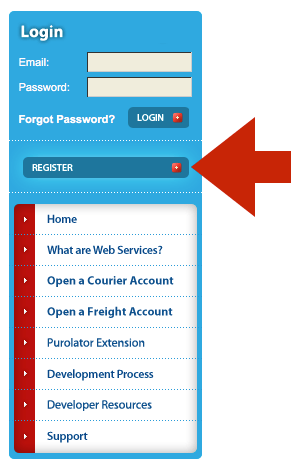
To successfully connect the app to Purolator, in addition to a Purolator account, and purolator.com username and password, you also need a Purolator Production Key. If you don’t have one, sign into purolator.com and navigate to Purolator E-Ship Resource Centre.On the left hand side of the page, locate and click on the button to register for Purolator E-Ship Web Services.
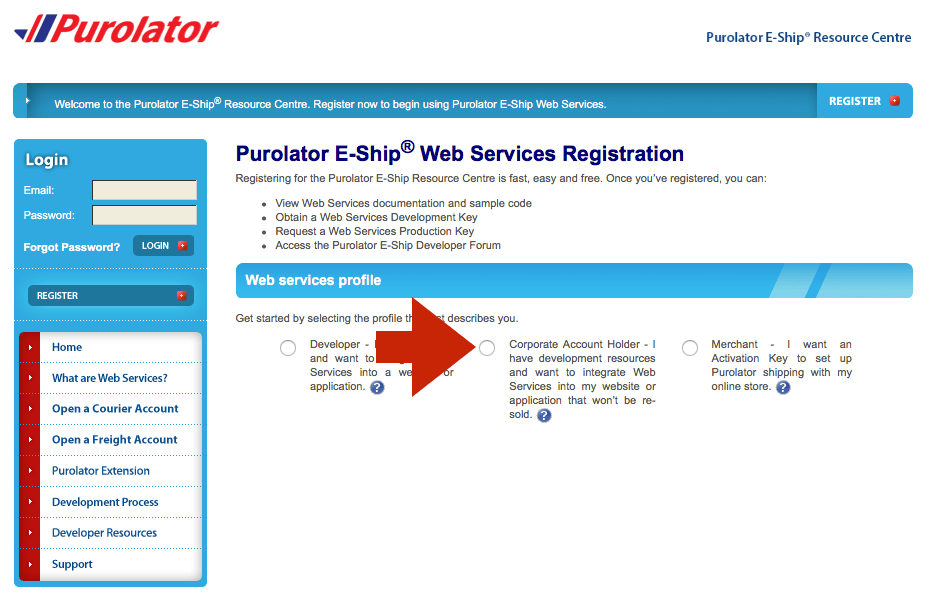
You will be presented with three choices. Choose the Corporate Account Holder option.
Complete the Profile Information form and click the Submit Registration button.
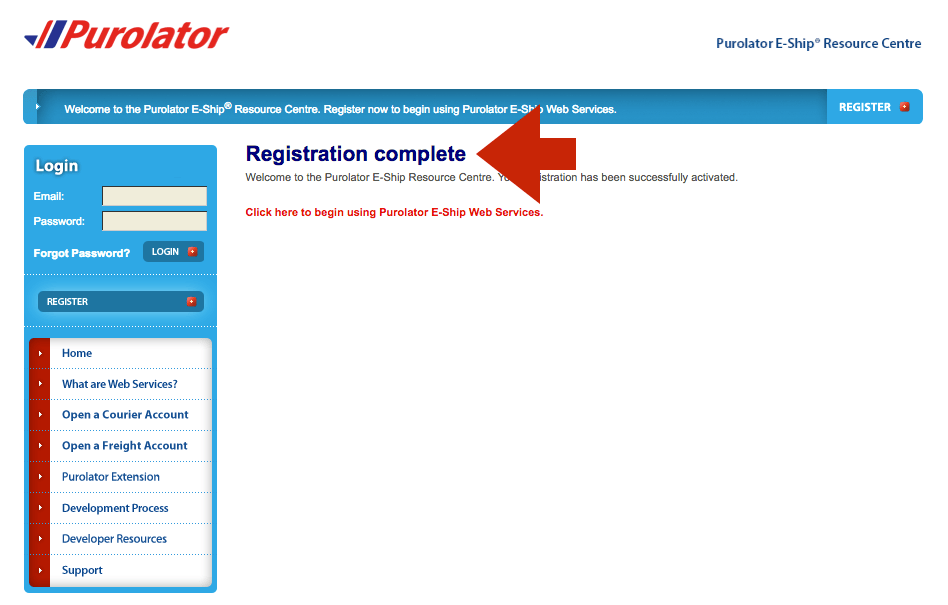
You will receive an email from Purolator containing a link to use to complete the registration process. Click on it and log back into the E-Ship Resource Center. A message will appear informing you that your registration is complete.
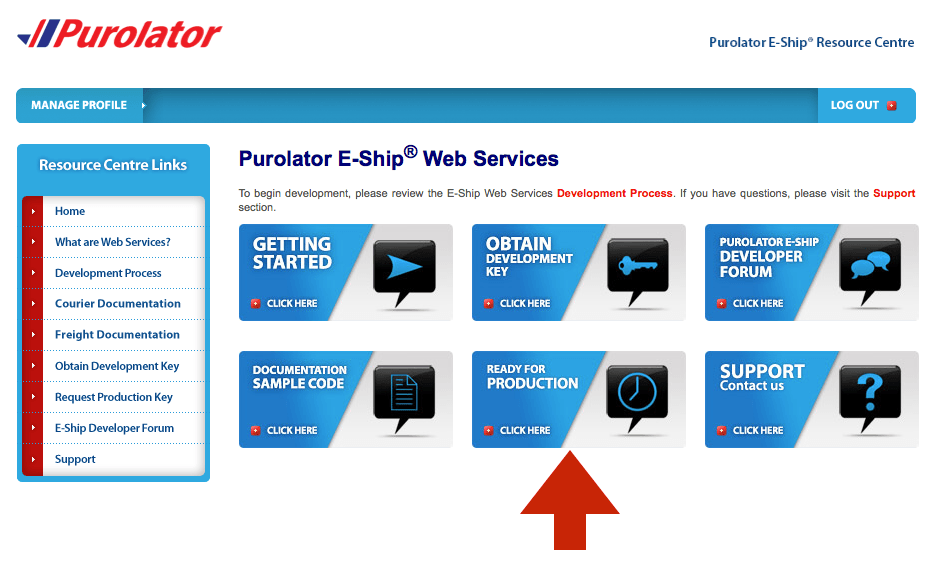
Now you’re ready to request your Production Key. Sign back into the Purolator E-Ship Resource Centre. You will be presented with the main Purolator E-Ship Resource Centre page. Click on the Ready for Production tile.
Select the Corporate option.
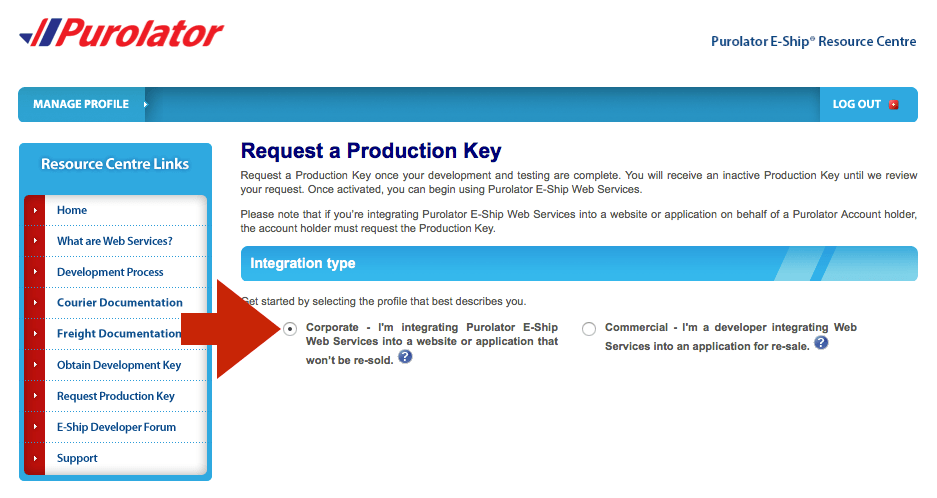
Complete the form and click the Submit button. The Production Key you receive will be inactive until Purolator verifies the request. A Purolator representative may contact you for security purposes before the Production Key is activated. If you intend to use the app’s multiple warehouse and/or drop ship feature, ask the Purolator representative to remove the sender address restriction.
Once you’ve received your PYLE ID and nickname from A. Duie Pyle, enter them on the Eniture App Provider page. Click Save Settings, then select Test Connection to verify the setup. If the connection is successful, a confirmation message will appear.
If it fails, review your entries for accuracy, make any needed corrections, and test again.
After you establish a successful connection, return to the User’s Guide for the app.
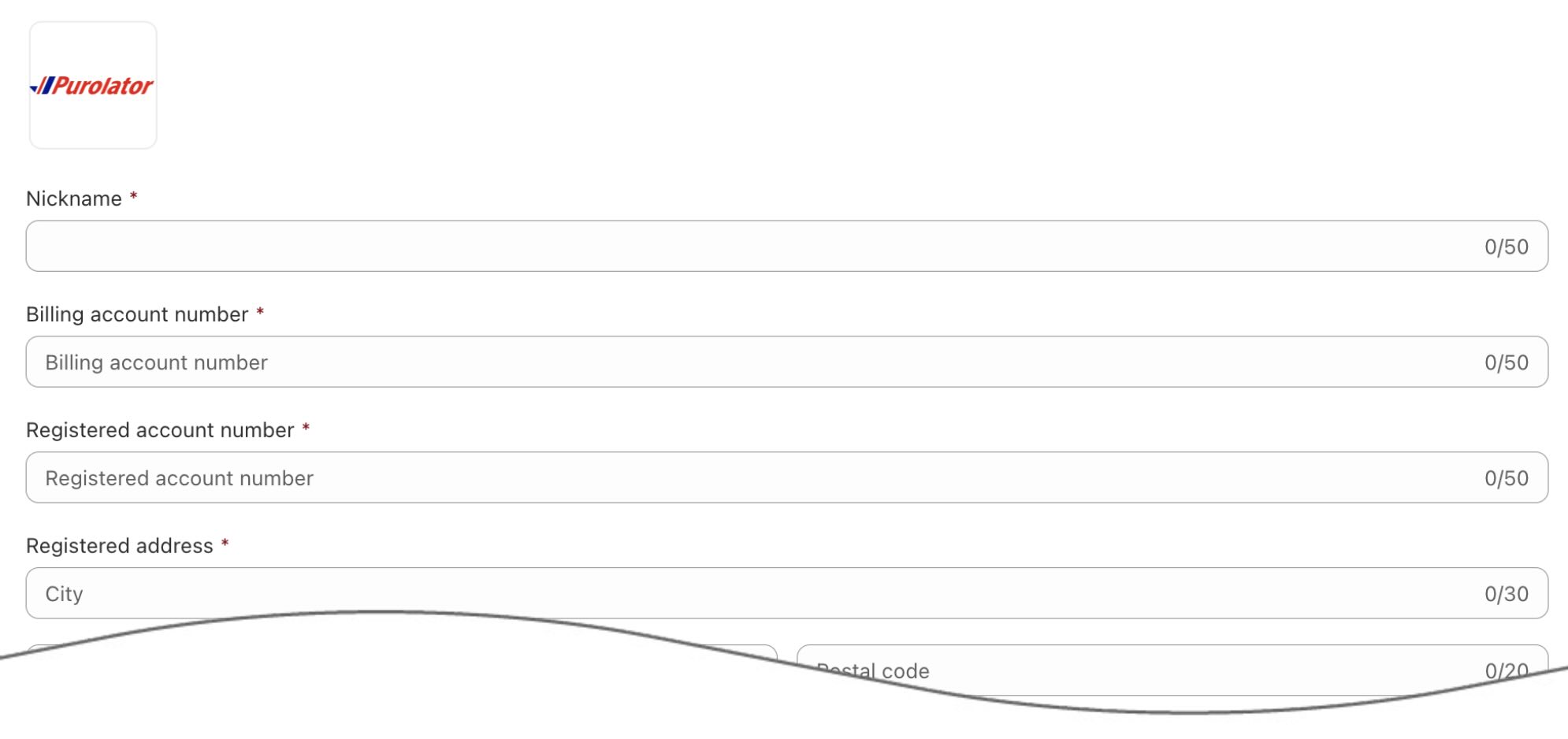
| Nickname | Enter a nickname to use for the app. It is for your use only and will not be visible to visitors to your store. |
| Billing Account Number | Enter the billing account number |
| Registered Account Number | Enter the registered account number |
| Registered Address | Enter the address registered to your Purolator account |
| Production Key | Enter the production key provided by Purolator |
| Production Key Password | Enter the production key password |