
 |
Tax Exempt Checkoutfor Shopify |
$6.75 / month
14 day free trial
Allow tax-exempt customers to complete purchases 24/7 without waiting for you to manually update their customer accounts. DIY Tax Exempt Checkout lets shoppers declare their sales tax exemption during the shopping process and removes sales tax from their orders at checkout. Customers can submit supporting documentation, helping you process tax-exempt orders without requiring phone calls or emails during business hours. The result is a more convenient shopping experience and fewer obstacles to completing tax-exempt purchases.
EXPLAINER VIDEO (1:43 min)
SETUP & DEMO VIDEO (3 min)
Shopify deprecated support for Vintage themes in January 2024. If you installed DIY Tax Exempt Checkout on a Vintage theme before that date, you can continue managing its existing settings within the app. New installations require an Online Store 2.0 theme.
Related documentation:
DIY Tax Exempt Checkout for Shopify Online Store 2.x themes
Allow tax-exempt customers to complete purchases 24/7 without waiting for manual updates to their customer accounts.
Enable customers to declare their sales tax exemption during the shopping process and have applicable sales tax removed at checkout.
Automatically update customers’ tax-exempt status in their Shopify customer profiles when they declare or change their exemption status.
Reduce manual processing and customer service requests by allowing shoppers to claim tax-exempt status when placing orders.
Customize the appearance of the tax-exemption widget to match your store’s theme.
Customize the widget’s text and instructions to reflect your preferred wording and language.
Receive email notifications when customers claim tax-exempt status.
Automatically tag orders when customers claim tax-exempt status or change their declaration.
Allow customers to upload supporting tax-exemption documents using the optional document upload utility.
Link to optional forms to collect additional customer information or documentation.
Requirements
Requires a Shopify Online Store 2.0 theme that supports App Blocks for new installations.
Customers must visit the Cart page to declare their tax-exempt status. Checkout flows that bypass the Cart page will not display the tax-exemption widget.
Current version: 1.8
Requirements
New installations require a Shopify Online Store 2.0 theme with a Cart page that is enabled with sections. If you installed the app on a Vintage theme prior to 2024, its settings can still be managed from within the app.
⚠ Important: VAT Exemption Compatibility
Note: This warning applies only to stores using DIY Tax Exempt Checkout (TEC) for VAT exemptions. It does not apply to stores using TEC solely for U.S. sales tax exemptions.
If you use DIY Tax Exempt Checkout (TEC) to provide VAT exemptions, your Shopify store must be configured to use Dynamic tax display (dynamic tax-inclusive pricing).
TEC’s VAT-exemption functionality will not work with standard tax-inclusive pricing.
DIY Tax Exempt Checkout for Shopify: How VAT Works, Limitations, and Best Practices
Shopify: Dynamic tax-inclusive pricing
FAQs
Will the app confirm a shopper’s tax exempt status?
No. It simply makes it more convenient for the shopper to indicate that they are tax exempt. You still need to perform the verification steps set forth by your state, province, or governing tax authority. You can include a link in the Tax Exempt Checkout widget to a page on your website where your customer can submit their information using a form or by uploading documents. Contact us if you need assistance doing this.
How will the app impact my existing tax exempt customers?
There is no impact. The app checks your store’s customer records when sufficient information is known about the shopper. If an entry for the shopper is found, the app honors the tax exempt setting in the record.
User’s Guide
⚠ Important: Shopify Vintage Theme Compatibility
As of January 2024, new installations of the app are supported only on Shopify stores using the Online Store 2.0 theme architecture. Merchants who installed the app on a Vintage theme before January 2024 can continue to manage their app settings directly within the app. These instructions for configuring and managing the app on a Vintage theme. Instructions for configuring and managing the app on an Online Store 2.x theme are available through the link below.
DIY Tax Exempt Checkout Documentation – Online Store 2.x Themes
⚠ Important: VAT Exemption Compatibility
Note: This warning applies only to stores using DIY Tax Exempt Checkout (TEC) for VAT exemptions. It does not apply to stores using TEC solely for U.S. sales tax exemptions.
If you use DIY Tax Exempt Checkout (TEC) to provide VAT exemptions, your Shopify store must be configured to use Dynamic tax display (dynamic tax-inclusive pricing).
TEC’s VAT-exemption functionality will not work with standard tax-inclusive pricing.
DIY Tax Exempt Checkout for Shopify: How VAT Works, Limitations, and Best Practices
Shopify: Dynamic tax-inclusive pricing
Table of Contents |
Return to top. |
Other information contained in this section:
App Settings |
Return to top. |
Using the app’s navigation menu, navigate to For Vintage Themes. Follow the instructions below.
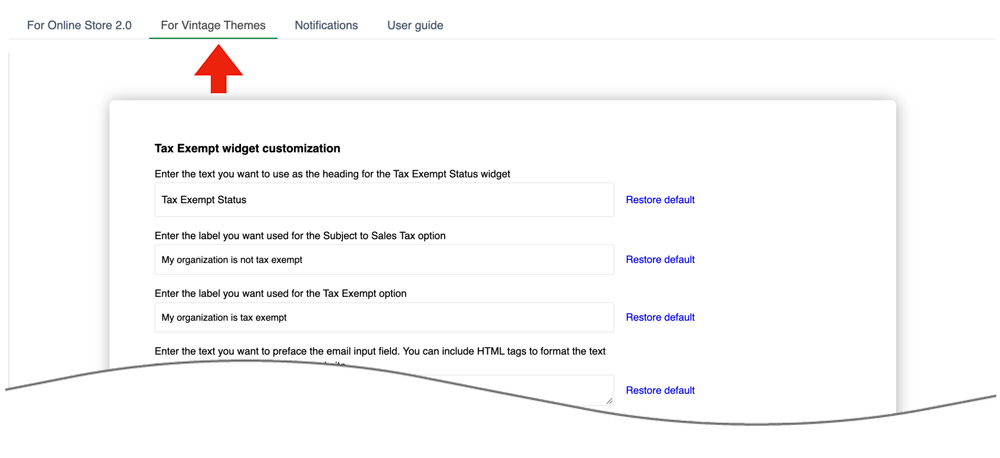
Use the instructions below to populate the settings to suit your preferences. Be sure to click the Save button located at the top right corner of your browser window to save your settings.
| Enter the text you want to use as the heading for the Tax Exempt Status widget | Enter the text you want to use for the header of the Tax Exampt Status widget. |
| Enter the label you want used for the Subject to Sales Tax option | Enter the label you want used for the Subject to Sales Tax option. The shopper will be charged sales tax if this option is selected and the ship-to address is located in an area for which you collect sales tax. |
| Enter the label you want used for the Tax Exempt option | Enter the label you want used for the Tax Exempt option. The shopper will not be charged sales tax if this option is selected and the ship-to address is located in an area for which you collect sales tax. |
| Enter the text you want to preface the email input field… | Enter the message you want to display above the email address field. You can include HTML tags to format the message and provide a link to a popup form or page on your website to collect information required to document the visitor’s tax exempt status.
Related document:
|
| Enter the placeholder text you want to show in the Email field | Enter the text you want to be used as the placeholder in the email address field. |
| Choose the border color for the tax exempt dialog box | Enter the HEX value for your color of preference fro the border. You can use the Color Picker on w3schools.com as a resource if you aren’t familiar with HEX values. When you enter the HEX value, don’t enter the leading hashtag (#). |
| Set the border width for the Tax Exempt Status widget in pixels. | Enter a value, in pixels for the width of the widget border. The larger the value, the thicker the border will be. |
| Require email address | The tax exempt widget prompts the user to provide their email address. Specify the desired user experience.
Always require email address
Choose this setting if you want the shopper to always enter an email address. Doing so ensures that the shopper is always associated with an existing customer record if one exists. You should choose this option if you have buyers whose tax-exempt status will change depending on who the purchase is for. Require email address only when tax-exempt status is claimed
Choose this setting if you want to require the shopper to enter an email address only when tax-exempt status is claimed. |
| Enter the text you want to preface the certificate number field… | Enter the message you want to display above the email address field. You can include HTML tags to format the message and provide a link to a popup form or page on your website to collect information required to document the visitor’s tax exempt status.
Related document:
|
| Enter the placeholder text you want to show in the Certificate number field. | Enter the text you want to be used as the placeholder in the tax certificate number field. |
| Tax document upload utility | The app has an optional tax document upload utility. Uploaded documents will be emailed, according to the chosen setting, to the recipient(s) identified on the Notifications page in the app settings. The upload utility will accept files up to 3MB in size.
Never display
Choose this setting if you won’t collect supporting documents from the shopper, or if you have added your own link to facilitate the document collection in the setting labeled: Enter the text you want to preface the email input field. You can include HTML tags to format the text or provide a link to a page on your website. Require for new tax-exempt status declarations
The shopper will only be required to upload supporting documents when tax-exempt status has been claimed and the shopper is a new customer or an existing one whose customer record is not already marked as tax-exempt. An email address must be provided for this setting to be operational. Require for all tax-exempt status declarations
Require the shopper to upload supporting documents any time tax-exempt status is claimed. Alert text when validation has failed
Enter the text you want to display in an alert if the shopper attempts to upload a file that fails validation. |
| Tax certificate number capture | The app has an optional tax certificate input field. Choose the setting that matches your preference for these fields.
Never display
Choose this setting if you won’t collect a tax certificate number from the shopper. Optional for all tax-exempt status declarations
Choose this setting if you to give the shopper the option of providing a tax certificate number. Require for new tax-exempt status declarations
Require the shopper to provide a tax certificate number if they are claiming tax-exempt status on your website for the first time. Require for all tax-exempt status declarations
Require the shopper to provide a tax certificate number any time tax-exempt status is claimed. Alert text when validation has failed
Enter the text you want to display in an alert if the shopper attempts to upload a file that fails validation. |
Notifications |
Return to top. |
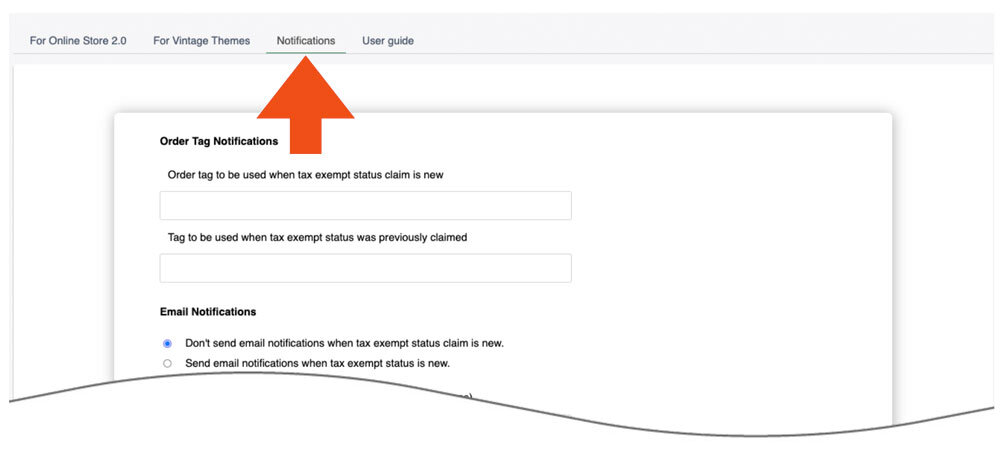
| Order Tag Notifications |
Order tag to be used when tax exempt status claim is new
If you want to tag orders when a customer declares tax exempt status for the first time, enter the value to use for the tag here. Order tag to be used when tax exempt status was previously claimed
If you want to tag new orders that are placed by customers who previously declared tax exempt status, enter the value to use for the tag here. |
| Order Note |
Add the certificate number to the Shopify order note when an order is tax exempt
The certificate number entered will be added to the Shopify order notes. Don’t add the certificate number to the Shopify order note
The certificate number entered will not be added to the Shopify order notes. |
| Document Notifications |
Always send uploaded documents.
Choose this setting if you always want to receive uploaded documents supporting tax-exempt declarations. Send uploaded documents only when tax exempt status claim is new.
Choose this setting if you only wish to receive uploaded documents supporting new tax-exempt declarations. Email address(es) for email notifications
If you enabled email notifications, enter the email addresses of the recipients. Separate multiple email addresses with commas. These email addresses will also receive uploaded documents. Subject
Enter the subject line to use for email notifications concerning the receipt of tax-exempt declaration documents. Email body for tax-exempt document notifications
Enter the message you want used for the body of the emails received concerning tax-exempt declaration documents. Short Codes
Below the input field for the message body is a list of short codes that you can use as dynamic placeholders. For example, “{{order_number}}” will insert the order number into the subject line or message. |
| Email Notifications |
Don’t send email notifications when tax exempt status claim is new
Choose this setting if you don’t want email notifications sent when a tax exempt status claim is new. Send email notifications when tax exempt status claim is new
Choose this setting if you want email notifications sent when a tax exempt status claim is new. Email address(es) for email notifications
If you enabled email notifications, enter the email addresses of the recipients. Separate multiple email addresses with commas. These email addresses will also receive uploaded documents. Subject
Enter the subject line to use for email notifications concerning tax-exempt declarations. Email body for tax-exempt notifications
Enter the message you want used for the body of the emails received concerning tax-exempt declarations. Short Codes
Below the input field for the message body is a list of short codes that you can use as dynamic placeholders. For example, “{{order_number}}” will insert the order number into the subject line or message. |
What your shopper sees |
Return to top. |
Your shopper will see the Tax Exempt Status widget when arriving on the Cart page. The exact appearance of the widget will depend on your settings.
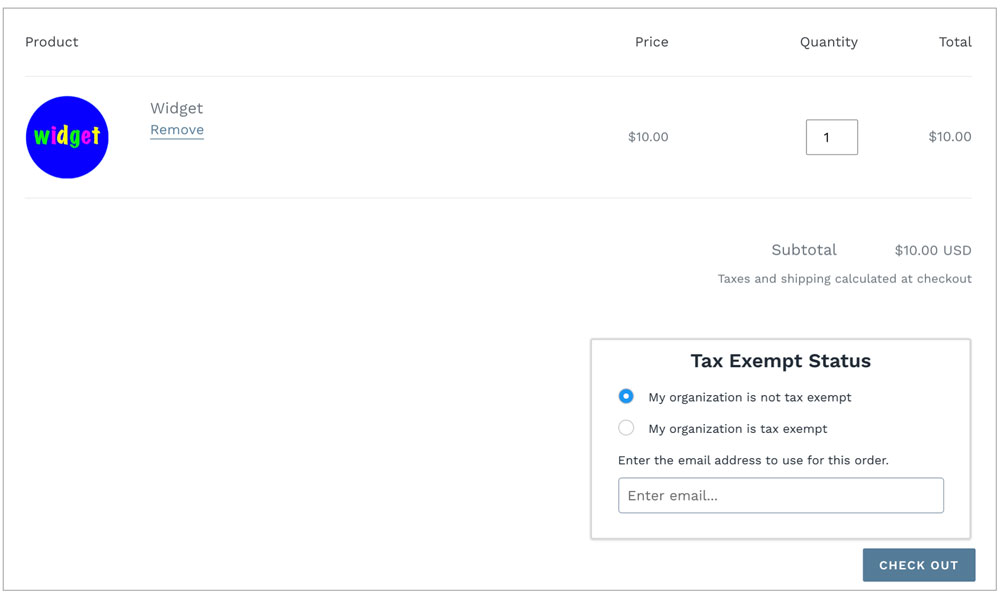
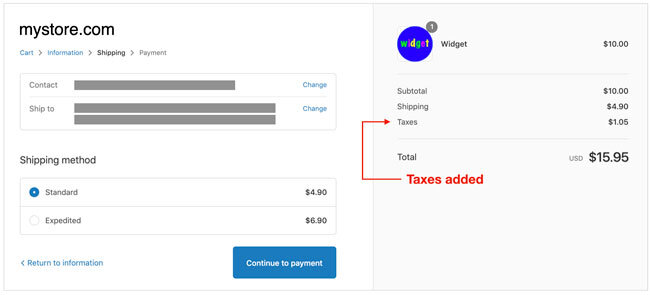
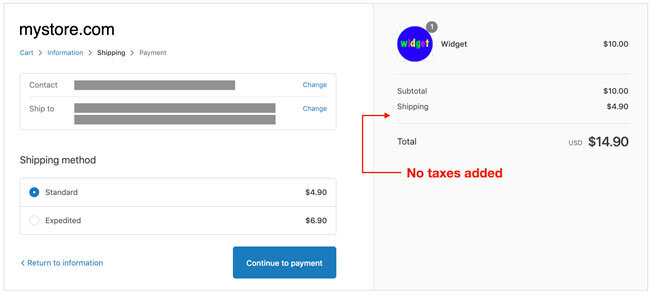
Taxes are applied and visible on the Shipping Methods page, which is the second of three pages in the Shopify checkout process. The images below show the appearance of the page when the address is located in an area for which taxes should be collected.
What you see |
Return to top. |
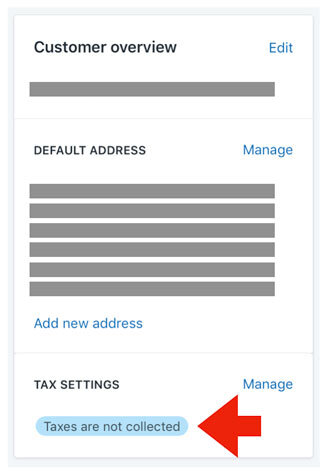
When a customer declares tax exempt status, you’ll see it reflected in the Customer overview widget when viewing the order.
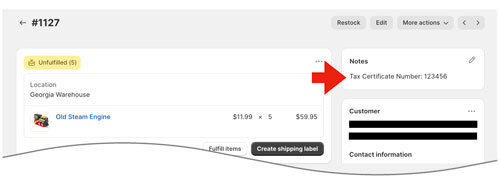
If the setting to capture the tax certificate number was used, the tax certificate number will appear in the order notes.
Uploaded tax documents are not stored in Shopify. Your settings allow you to specify where to email them, and under what circumstances. You should archive the tax documents attached to the emails according to your operating procedures.