
Obtain your TForce API credentials.
Click the Log In link and sign in to the developer portal.
If your login doesn’t work, you may need to sign up for developer portal access. Complete the email verification and registration steps. Select End User for the User Type field when prompted.
Click Profile in the navigation menu.

In My OAuth Client, click Configure My Client.

In the window that opens, click Create to create your API credentials. If you have created credentials previously, this page may look different.

Under Your OAuth Client, enter a Display Name for your own reference, such as Real Time Shipping Quotes for WooCommerce. Click Update.

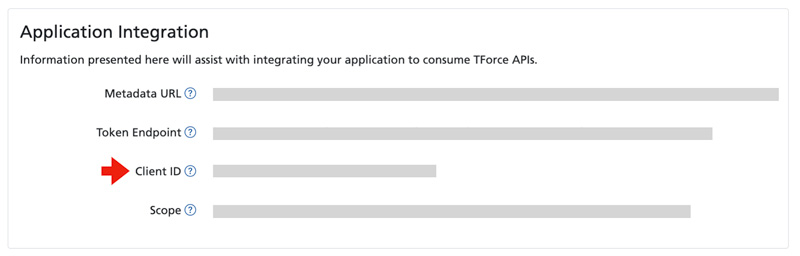
Under Application Integration, copy and save the Client ID.
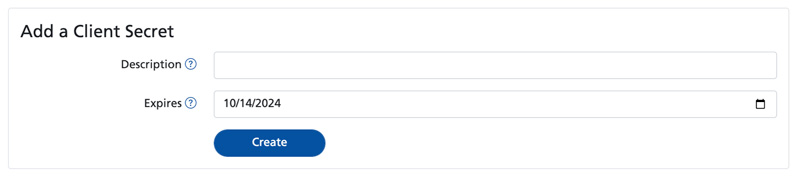
Under Add a Client Secret, enter a Description, choose the Expires date if needed, and click Create.
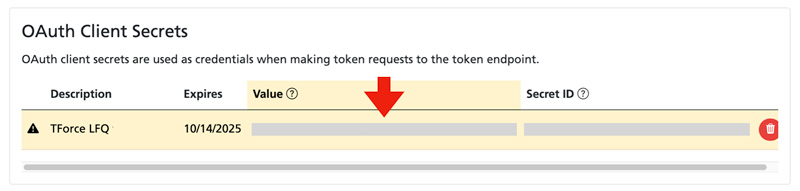
Copy and save the Client Secret from the Value field under OAuth Client Secrets.
The Client Secret is visible only when it is created. Copy it and keep it in a safe place before leaving this page.
You should now have the Client ID and Client Secret needed to connect the plugin to TForce.
Connect the plugin to the TForce API.
The Connect Provider window will appear. Enter the information prompted for using the instructions below. Click Test Connection to verify that the plugin can connect to the TForce API. Correct any errors and try again if the test fails. When the connection succeeds, click Save. Return to the Real Time Shipping Quotes User’s Guide to continue setting up the plugin.
| Nickname | Enter a nickname for this connection. It is for your use only and won’t be displayed to shoppers. |
| Client ID | Enter the Client ID obtained from TForce. This field is required. |
| Client secret | Enter the Client Secret obtained from TForce. This field is required. |
| Username | Enter the username for your TForce account if your account requires it. Otherwise, leave the field blank. |
| Password | Enter the password for your TForce account if your account requires it. Otherwise, leave the field blank. |
| Relationship to shipper | Shipper Select this option when you are identified as the shipper on your TForce account. Third party
Select this option if your TForce account requires a third-party relationship. Two additional fields will appear: Third party country or territory
Select the country or territory associated with the third-party account. The choices are United States, Canada, Guam, Mexico, Puerto Rico, and US Virgin Islands. Third party postal code
Enter the postal code associated with the third-party account. This field is required when Third party is selected. |
| TForce rates my freight based on weight and: | Freight class Choose this option when TForce uses the freight class and shipment weight to calculate rates. Dimensions
Choose this option when TForce uses shipment dimensions and weight to calculate rates. Related documents:
What Is A Freight Class? |