
Obtain API Connection Credentials
You’ll need a UPS account, a Client ID, and a Client Secret to connect UPS to the plugin. Using your UPS.com username and password, log in to the UPS Developer Portal.
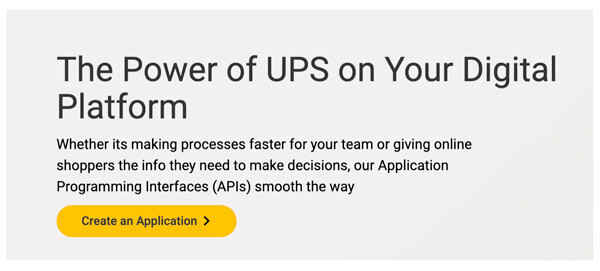
Click the Create an Application button.
Choose I want to integrate UPS shipping capabilities to my business from the I need API credentials because dropdown.
Select the account you want to connect to from the Choose an account to associate with these credentials dropdown. Click the Next button.

Complete the Primary Contact and API Integration Owner forms.
On the Add App form, enter an App name of your choice. This name is for your reference. Leave the Callback URL blank.

Enable the following API products:
- Rating
- Time In Transit
Use the search field or pagination controls if needed. Click Save.
Copy the Client ID and Client Secret shown in the Developer Portal. You’ll use them when connecting your UPS account to the plugin.

Connect the plugin to the UPS Rating API.
In your WordPress dashboard, navigate to WooCommerce > Settings > Real Time Shipping Quotes. Select Providers from the plugin’s navigation menu. Find UPS Small and click Add account. Enter the information requested in the Connect Provider window.
| Nickname | Enter a nickname to identify your UPS connection in the list of installed providers. |
| Account number | Enter the UPS account number associated with your API credentials. |
| Client ID | Enter the Client ID from the UPS Developer Portal. |
| Client secret | Enter the Client Secret from the UPS Developer Portal. |
Click Test Connection to verify your credentials. Correct any errors and test again if the connection fails. Click Save to save the connection. On the Providers page, locate the connected UPS account and click Activate if it isn’t already active. You can update the credentials later using its Connection settings link.