
The Connection Settings page is used to establish the app’s connection to the carrier’s web services. Enter the information prompted for, then click Save Settings. After the settings have been saved, click the Test Connection button. You’ll see a success message if the app was able to establish a connection with the carrier’s servers. If the test failed, something about your connection settings information is incorrect. Make the necessary corrections and try again.After you establish a successful connection, return to the User’s Guide for the app.
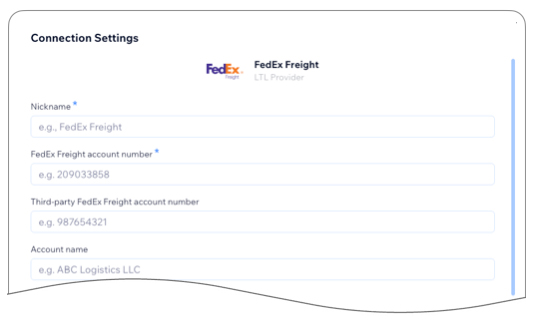
| Nickname | Enter a nickname for the connection. It will only be visible in the app. |
| FedEx Freight Account Number | Enter the FedEx Freight account number. This is the account number tied to the physical address associated with account. |
| Third-party FedEx Freight Account Number | Enter the Third-party FedEx Freight account number. This is the account number used when neither the ship-from or ship-to address match the physical address associated with the account. |
| Account name | Enter the name on the account as it is recorded with FedEx Freight. |
| Address | Enter the physical address associated with the account. This must match what FedEx Freight has recorded in its system, or the API connection will fail. Enter the standard two character abbreviation for the state or province, and for the country (US for United States; CA for Canada). |
| Account number to test | Prior to clicking on the Test Connection button, select the type of account number you want to test. |